
Android
Apple
Windows
Android
- Open the Play Store
- Search for an app called ‘Zoom Cloud Meetings’
- Tap ‘Install’
Apple

- Open the App Store
- Search for an app called ‘Zoom Cloud Meetings’
- Tap ‘Get’ to download Zoom.
Windows

- Open your Browser
- Click on this link to download Zoom
- When the download has finished, open it and install Zoom
Phone or Tablet
Computer or Laptop
Phone or Tablet
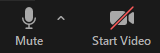
- The mute button will turn your microphone off so no one can hear you, you can then press the button again to let others hear you.
- The start video button will turn on your camera, so others can see you, you can then tap it again to turn your camera off, so no one can see you.
- If these buttons disappear, tap the middle of your screen once.
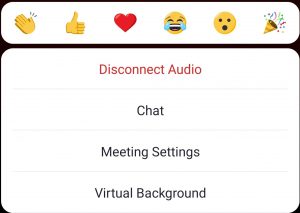
- Tap the ‘More’ button and then tap Chat to send typed messages.
Computer or Laptop
- The mute button will turn your microphone off so no one can hear you, you can then press the button again to let others hear you again.
- The start video button will turn on your camera, so others can see you.
- The stop video button will turn your camera off, so no one can see you.

- Click the Chat button to send typed messages.